
Quick start: set up Khaleeji COD in two minutes
To set up Khaleeji COD, turn on Cash on Delivery in Shopify, open the app, click Use GCC preset, then click Save rules. The Status badge changes to Active and your rules start working at checkout. Then run a test checkout to see COD shown for a small cart and hidden for a big one.
Step 1: Turn on Cash on Delivery in Shopify
Khaleeji COD doesn't add a payment method. It changes how your existing Cash on Delivery method appears at checkout, so COD has to be switched on first.
- In your Shopify admin, go to Settings > Payments.
- Select the Cash on Delivery (COD) manual payment method.
- If you like, add a short line under Additional details and Payment instructions.
- Activate the method.
Shopify's help page on manual payment methods has the full steps, and so does our guide on how to add Cash on Delivery to a Shopify store.
Step 2: Open Khaleeji COD and check the Status
Open Khaleeji COD from the apps in your Shopify admin. The Status section at the top shows one of three badges:
| Badge | Message in the app | What it means |
|---|---|---|
| Not set up | "Not set up yet. Pick your rules and press Save." | Nothing runs at checkout yet. |
| Active | "Active: Khaleeji COD is running at checkout." | Your saved rules are live. |
| Off | "Saved but switched off in Shopify settings. Save again to switch it on." | Your rules are saved, but the checkout rule was switched off in Shopify. |
On a store that hasn't saved any rules, you'll see Not set up.
Step 3: Click "Use GCC preset"
If you haven't saved rules before, the Checkout rules form opens with the GCC preset already filled in. Click Use GCC preset anyway if you changed something and want to start again. The preset:
- hides COD for customers tagged
cod-refused(orcod-blocked) - hides COD when the cart is above 1,500
- hides COD on a first order above 500
- hides COD when the cart has a product tagged
no-cod - shows COD as «الدفع عند الاستلام» to Arabic shoppers and "Cash on Delivery" to everyone else
The amounts are in your shop's currency, and the box next to each amount shows the currency code. The preset uses the same numbers in every currency, so check that 1,500 and 500 suit your prices. The GCC preset, rule by rule explains each setting and how to change it.
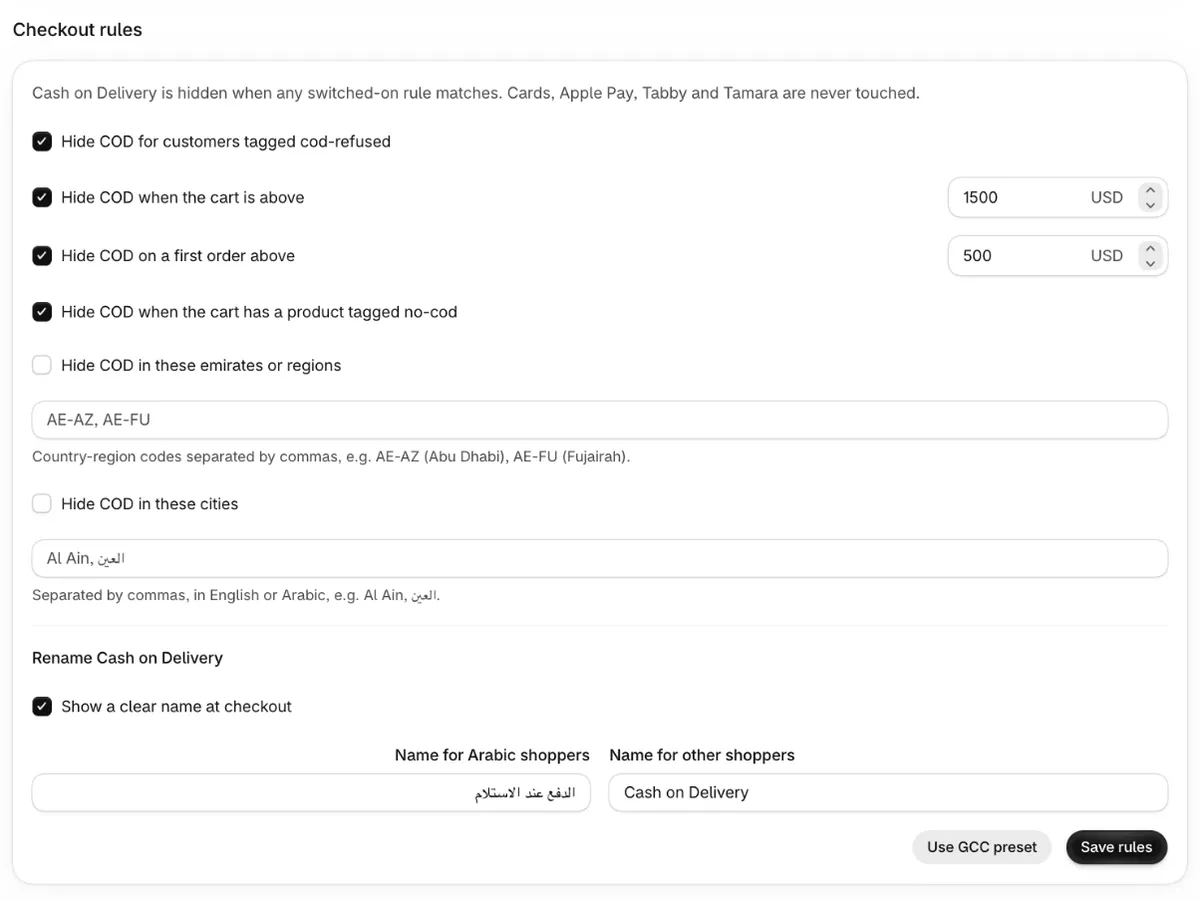
Nothing changes at checkout until you save.
Step 4: Click "Save rules"
Click Save rules. The first time, the app creates its checkout rule in your store and shows "Khaleeji COD is now live at checkout." After that, saving shows "Rules saved." The Status badge should now say Active.
On the Free plan you may see this message instead: "The free plan includes 1 rule plus the Arabic name. Switch off the extra rules or upgrade to Pro." The preset switches on four rules and Free allows one. The Arabic and English COD name doesn't count as a rule. You can untick all but one rule and save again, or move to Pro, which costs $7.99/month after a 14-day free trial. On a development store you can test Pro free.
Step 5: Test with a real checkout
Payment rules run at the online checkout. Shopify doesn't run them inside the Shopify admin, so if you collect payment for a draft order from the admin, you won't see any change. Test through your storefront, or open a draft order's checkout link.
Run three checks:
- Small cart: check out with a cart below 500. COD appears, named "Cash on Delivery", or «الدفع عند الاستلام» if the checkout is in Arabic.
- Big cart: check out with a cart above 1,500. COD is gone and card payments are still there.
- Tagged customer: tag a test customer
cod-refused, then check out as that customer, for example with a draft order assigned to them. COD is hidden whatever the cart total.
For the draft-order method step by step, see how to test checkout payment rules with draft orders.
What should you do next?
- Add the UAE emirates or the cities where you don't want COD. The checkout rules reference explains how to write them.
- On Pro, run the refuser scan to tag customers whose COD orders from the last 60 days were cancelled.
- If COD shows or hides when you don't expect it, work through the troubleshooting checklist.
Sources
Checked on the date above. Shopify and courier settings change, so check the source if something looks different.